Configurations
A configuration is a named set of values for a part's parameters. An angle bracket made for M6, M8 and M10 screws, a spacer in three lengths, a housing with or without a lid: the parameters are declared once, and each configuration is one row of a table that lists only the values it changes. Everything else stays shared, so a fix to the part is a fix to every configuration.
The table is a configurations({...}) statement at the top of the part body. The Part Parameters panel switches between its rows, an assembly inserts a row by name, and export writes one file per row.
const configuration = configurations({
    M8: { Screw: 'M8', Width: 50, Leg: 50, Thickness: 5 },
    M10: { Screw: 'M10', Width: 60, Leg: 60, Thickness: 6, Gusset: true },
});
const screw = param('Screw', 'M6', 'select', { options: [/* M6, M8, M10 */] });
const width = param('Width', 40, 'number', { min: 30, max: 120, step: 5 });
Default is always there: it is the param() literals, the values the declarations themselves carry. A row leaves a parameter out to keep its literal.
In the viewport
All of this happens in the part workspace's Part Parameters panel, in the Configuration row under its header. It sits above the Part row, whose dropdown still names the part a new parameter goes into.
Creating a configuration
- Click Add configuration under the header (it stands in for the configuration dropdown while the file has no table). Type a name — spaces are fine,
Defaultis taken — and confirm. - The first row creates the
configurations({...})statement as the first line of the part body and addsconfigurationsto the import line. The new configuration is empty, a copy of Default, and it is now the one on screen. - Set the parameters until the part looks the way the configuration should: pick a screw size, type a width, tick a checkbox. Each value goes into the new row as you set it (see Changing values).
To start from another configuration rather than from Default, show that one and use Duplicate….
Switching
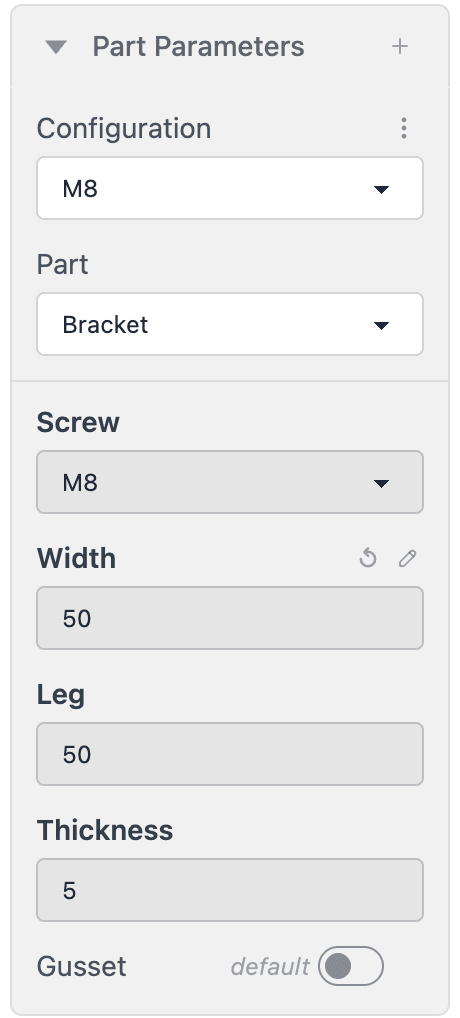
Once the file has a table, the Configuration row shows a dropdown: Default, then the rows in the order the table declares them. Picking one re-renders the part with that row's values. The choice is not written into the source — switching never creates a diff — and it is remembered per file, so the workspace reopens on the configuration you left.
While a row is active, the label of each parameter the row sets is bold, and a parameter the row leaves out says default beside its control: its value is the literal. In the picture, the M8 row sets Screw, Width, Leg and Thickness, and leaves Gusset at its literal.
Changing values
The panel writes what you change into the source, into the configuration on screen:
- With a row on screen, a value you change becomes that row's value: typing 55 into Width on M8 writes
M8: { …, Width: 55 }. A parameter the row left at its default joins the row, and its label turns bold. - On Default, a value you change is the parameter's own literal:
param('Width', 64, …). A part without aconfigurations()table has only Default, so there the panel always edits the literals.
A value is written once you finish with it: Enter or leaving a field, letting go of a slider, a pick in a dropdown, a click on a checkbox. Each one is one edit of the file and one undo step in the editor. A value the parameter does not take — outside its minimum and maximum, not one of its options — is refused with a message, and so is a change the source cannot take as written: a table or a default written as an expression (Width: base * 2). Either way the file is left as it was.
On a row, a bold label gets a ↺ when you point at it. It removes that value from the row: the parameter goes back to its default and says default again.
Switching to another configuration never asks anything: every value you changed is already in its row.
In the read-only viewer, such as a model embedded in a page, the panel cannot write: a change applies to that view only, and the ↺ in the panel's header puts every value back.
The actions menu
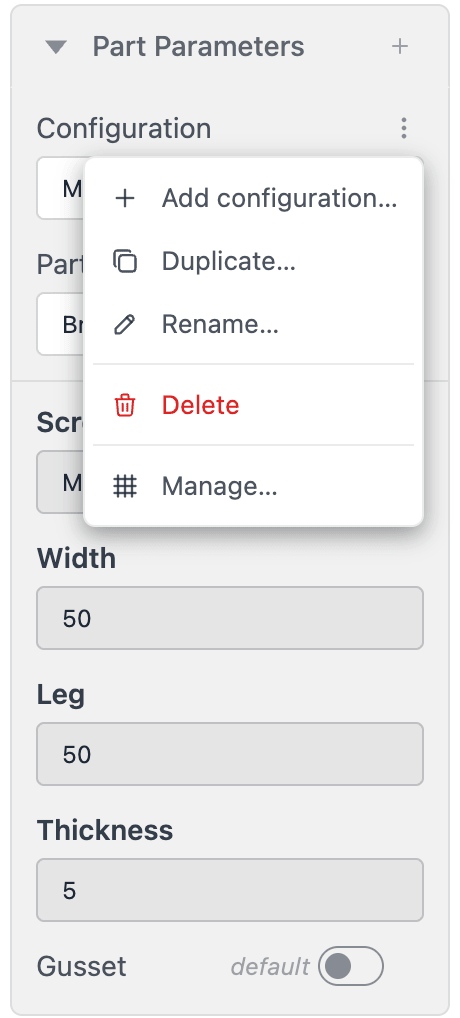
The ⋮ button at the end of the Configuration label line opens the row actions:
| Action | What it does |
|---|---|
| Add configuration… | A new row from the values on screen, then shows it. On Default the row starts empty; with a row on screen it copies that row's values. |
| Duplicate… | The same as Add configuration; with a row active, the name is prefilled as <row> copy. The active row is left as it was. |
| Rename… | Renames the active row in the table. |
| Delete | Removes the active row after asking, and shows Default. Deleting the last row removes the statement and its import too — or leaves configurations({}) when the body reads its return value. |
| Manage… | Opens the whole table as a grid (below). |
Renaming a parameter through its pencil renames its key in every row; deleting a parameter removes its value from every row.
The Manage configurations grid
Manage… opens the table as a grid: one row per configuration, one column per parameter of the part, every cell the parameter's own control.
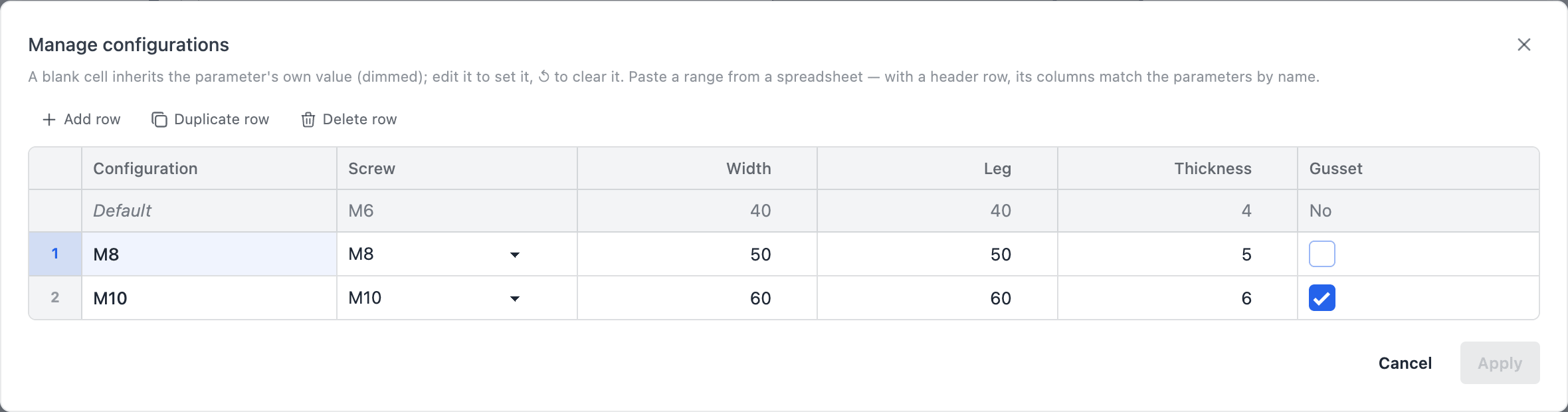
- The first row is Default, read-only: the literals. Edit those with the parameter's pencil.
- A blank cell inherits the literal and shows it dimmed. Edit the cell to set it; its ↺ clears it back to inheriting.
- A cell the source writes as an expression (
Width: base * 2) is shown as its source text and is read-only; ↺ still clears it. - Each row's name is a text field: type to rename it. Click a row to select it; Add row adds an empty configuration, Duplicate row copies the selected one, and Delete row marks it for removal after asking.
- A range copied from a spreadsheet pastes into the grid. With a header row, its columns are matched to the parameters by label, and a first column of names adds or updates the rows of those names; without one, the range is laid out from the selected cell. A paste that cannot land changes nothing and says why under the grid; a column that matches no parameter is ignored with a warning.
- Nothing is written until Apply, which rewrites the table statement once — one undo step, one render. Cancel drops everything.
The grid lists the parameters the current render declared. A parameter that only one row declares (see In code) appears only while that row is on screen.
Exporting from the viewport
In a part with configurations, the Export dialog has a Configuration select at the top, set to the row on screen. Pick another row to export that one instead, or All configurations (.zip) to export Default and then every row into one zip.
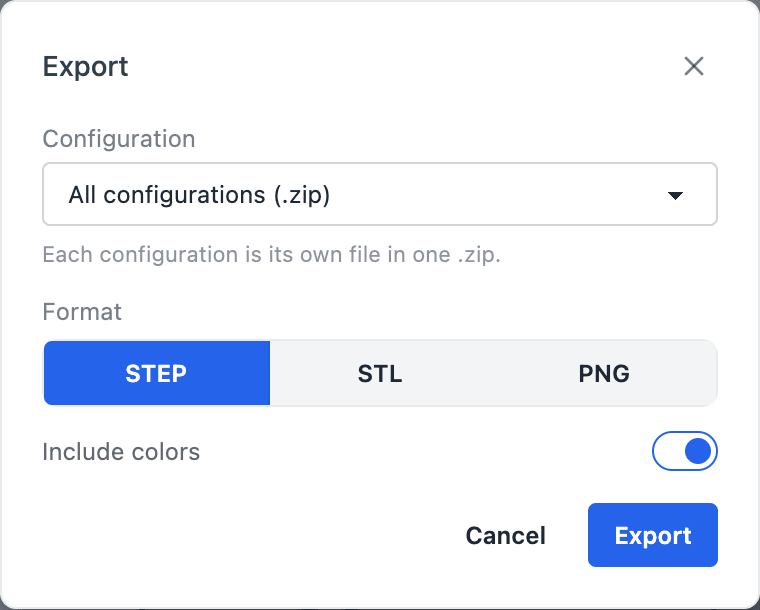
Downloads are named after the part's file: bracket.part.js exports as bracket.step, its M8 row as bracket-M8.step, and All configurations as bracket-configurations.zip, holding bracket.step, bracket-M8.step and bracket-M10.step. Row names become file-safe: anything other than letters, digits, ., _ and - turns into -.
What goes into the file depends on how you opened the dialog:
- File ▸ Export… in the desktop app (Ctrl/Cmd+E) exports every solid the chosen configuration builds. A row that adds a body, or leaves one out, exports exactly its own bodies, whatever is on screen.
- Export in the top bar, or a solid's row menu, exports the solid you picked. For another configuration, that solid is found by its history — the feature that made it — and exported as that row builds it. If the row does not build it, the export is refused with a message naming the solid and the configuration, rather than exporting a different body.
All configurations is all or nothing: if any row fails, no zip is delivered and the message names the row. PNG always captures the configuration on screen.
Inserting the part
When an assembly inserts a part that has configurations, the Insert dialog shows a Configuration select above the part's parameter form, and Edit parameters… has the same select. Picking a row writes its name into the statement: insert(bracket, 'M8'). See Configurations in the assembly section.
In code
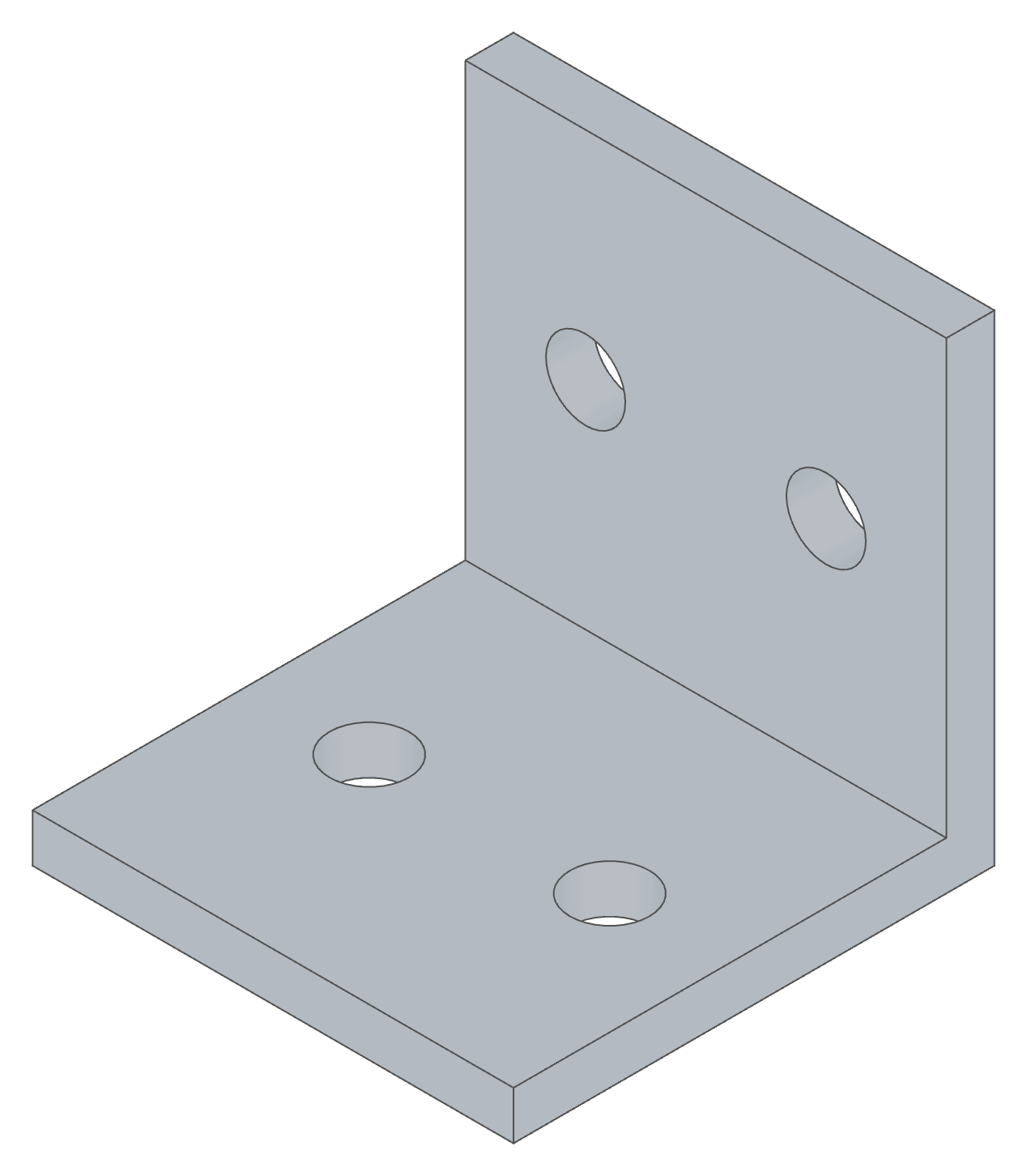
M6, 40 × 40, 4 thickThe param() literals.
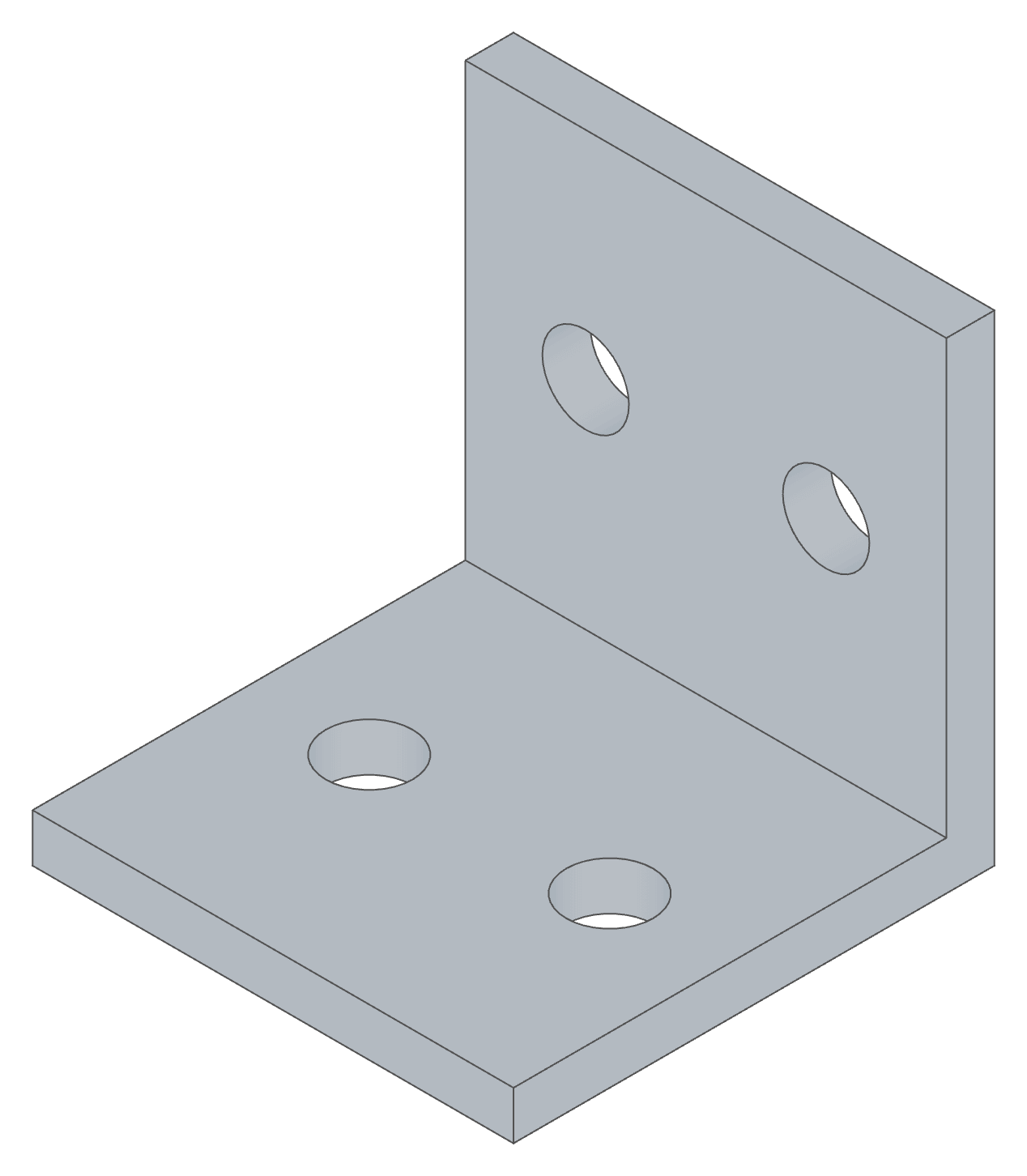
M8, 50 × 50, 5 thickSets Screw, Width, Leg and Thickness.
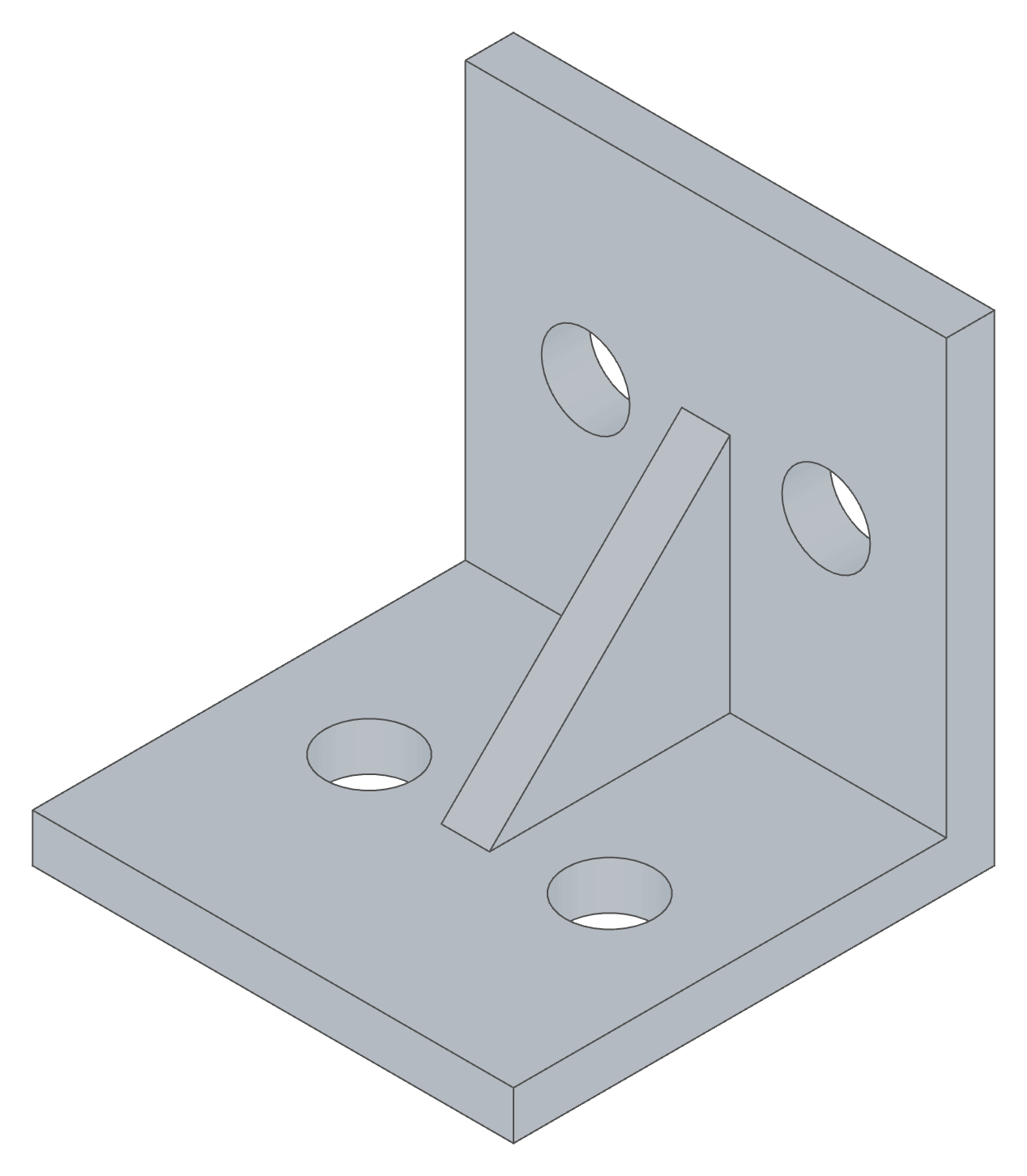
M10, 60 × 60, 6 thickAlso sets Gusset, so this one has the gusset.
An angle bracket in three screw sizes
import { part, param, configurations, sketch, line, point, plane, extrude, hole } from 'fluidcad/core';
import { coincident, distance, fix, horizontal, vertical } from 'fluidcad/constraints';

// An angle bracket in three screw sizes. The param() calls are the part's
// parameters; each configurations() row names a set of their values, and
// Default is the param() literals — the M6 bracket.
export const bracket = part('Bracket', () => {
    // The first statement of the body, before any param(). One entry per
    // configuration; a row lists only the labels it changes, and a label it
    // leaves out keeps its param() literal. The return value is the name of
    // the row being built — 'Default' when none is.
    const configuration = configurations({
        M8: { Screw: 'M8', Width: 50, Leg: 50, Thickness: 5 },
        M10: { Screw: 'M10', Width: 60, Leg: 60, Thickness: 6, Gusset: true },
    });

    // The parameters, declared once with their controls and bounds. The
    // screw is a select whose values are fastener sizes, so hole() reads it
    // as is.
    const screw = param('Screw', 'M6', 'select', {
        options: [
            { label: 'M6', value: 'M6' },
            { label: 'M8', value: 'M8' },
            { label: 'M10', value: 'M10' },
        ],
    });
    const width = param('Width', 40, 'number', { min: 30, max: 120, step: 5 });
    const leg = param('Leg', 40, 'number', { min: 30, max: 120, step: 5 });
    const thickness = param('Thickness', 4, 'number', { min: 3, max: 10, step: 0.5 });
    const gusset = param('Gusset', false, 'checkbox');

    // The L profile on the side plane: two legs of `leg`, both `thickness`
    // thick, extruded `width` across, centred on the origin.
    sketch('yz', () => {
        const a = line([0, 0], [-leg, 0]);
        const b = line([-leg, 0], [-leg, thickness]);
        const c = line([-leg, thickness], [-thickness, thickness]);
        const d = line([-thickness, thickness], [-thickness, leg]);
        const e = line([-thickness, leg], [0, leg]);
        const f = line([0, leg], [0, 0]);
        coincident(a.end(), b.start());
        coincident(b.end(), c.start());
        coincident(c.end(), d.start());
        coincident(d.end(), e.start());
        coincident(e.end(), f.start());
        coincident(f.end(), a.start());
        horizontal(a);
        vertical(b);
        horizontal(c);
        vertical(d);
        horizontal(e);
        vertical(f);
        fix(a.start(), [0, 0]);
        distance(a.start(), a.end(), leg);
        distance(f.start(), f.end(), leg);
        distance(b.start(), b.end(), thickness);
        distance(e.start(), e.end(), thickness);
    });
    extrude(width).symmetric();

    // A checkbox turns the gusset on. Only the M10 row sets it, so only the
    // M10 bracket has one: what a configuration "does" is ordinary code
    // reading a parameter.
    if (gusset) {
        sketch('yz', () => {
            const a = line([-thickness, thickness], [-leg * 0.6, thickness]);
            const b = line([-leg * 0.6, thickness], [-thickness, leg * 0.6]);
            const c = line([-thickness, leg * 0.6], [-thickness, thickness]);
            coincident(a.end(), b.start());
            coincident(b.end(), c.start());
            coincident(c.end(), a.start());
            horizontal(a);
            vertical(c);
            fix(a.start(), [-thickness, thickness]);
            distance(a.start(), a.end(), leg * 0.6 - thickness);
            distance(c.start(), c.end(), leg * 0.6 - thickness);
        });
        extrude(thickness).symmetric();
    }

    // Two clearance holes in each leg, a quarter of the width either side
    // of the middle, placed by points on the legs' inner faces. hole()
    // takes the screw size and cuts its clearance diameter, so every row
    // gets the right holes without listing them.
    const flat = sketch(plane('xy', { offset: thickness }), () => {
        const p1 = point([-width / 4, -(leg + thickness) / 2]);
        const p2 = point([width / 4, -(leg + thickness) / 2]);
        fix(p1, [-width / 4, -(leg + thickness) / 2]);
        fix(p2, [width / 4, -(leg + thickness) / 2]);
        return { p1, p2 };
    });
    hole(screw, flat.geometries.p1, flat.geometries.p2);

    const upright = sketch(plane('xz', { offset: thickness }), () => {
        const p1 = point([-width / 4, (leg + thickness) / 2]);
        const p2 = point([width / 4, (leg + thickness) / 2]);
        fix(p1, [-width / 4, (leg + thickness) / 2]);
        fix(p2, [width / 4, (leg + thickness) / 2]);
        return { p1, p2 };
    });
    hole(screw, upright.geometries.p1, upright.geometries.p2);
});
configurations() takes an object of rows. Each key is a configuration's name; each value is a { label: value } object in the same shape an insert() override takes, keyed by the labels of the body's param() calls. Values may be literals or expressions over variables in scope. A select parameter's cell is the option's value, not its label: Screw: 'M8' here because the options' values are the screw sizes themselves.
It returns the name of the configuration being built: the row's name, or 'Default' when the literals are. That makes Default a reserved name; a row cannot take it.
Everything else is code
A configuration changes parameter values and nothing else, because everything else already follows from them. Which features exist, a hole size, a count, a colour: write them in terms of the parameters, as the bracket does with its holes and its gusset, and every row gets them right.
| To vary | Write |
|---|---|
| Whether a feature is there | if (gusset) { … } with a checkbox parameter |
| A fastener size | hole(screw, …) with a select parameter whose values are sizes |
| A dimension that follows another | const inset = width / 4 |
| How many | a repeat() whose count is a number parameter |
A parameter only one row has
Branch on the return value to declare a parameter that only one configuration needs. Here the gusset's thickness exists only while M10 is built — in the Part Parameters panel, in the grid, and as a key the M10 row may set:
if (configuration === 'M10') {
    const rib = param('Gusset thickness', 6, 'number', { min: 3, max: 12, step: 1 });
    // … the gusset, extruded rib thick
}
Inserting a configuration by name
An assembly inserts a configuration with a string second argument. An override object then moves to the third position and applies on top of the row:
import { bracket } from './bracket.part.js';

insert(bracket);                         // Default — the literals
insert(bracket, 'M8');                   // the row
insert(bracket, 'M10', { Width: 80 });   // the row, with one value changed
A name the table does not declare is an error on the insert() statement, listing the names it does declare. Insert a configuration by name rather than copying its numbers into an override object: the row stays the one place those values live. The assembly guide has the rest.
Several parts in one file
A file can hold more than one part(), and each part may have its own table. The rows belong to the file:
- One dropdown for the file. The Configuration dropdown lists every row name of every table, and the row you pick is built by every part that declares it. A part whose table does not have that row, or that has no table, builds Default.
- Each part's values live in its own table, first in that part's body. A value you change on a row goes into the table of the part it belongs to, created if the part has none, and Add configuration writes each part's values into its own table the same way; a part the row changes nothing in gets no entry for it. A row with nothing changed goes into the part named in the Part dropdown.
- Rename and Delete act on every table that has the row. A table that a delete empties is removed.
- Each part's parameters are separate, even when two parts use the same label: the bracket's
Widthand the backing plate'sWidthare two parameters, and a row sets them independently.
A shelf bracket and the backing plate it screws onto, in one file: each row sizes the bracket and moves the plate's holes to match it.
export const bracket = part('Bracket', () => {
    configurations({
        M8: { Screw: 'M8', Width: 50, Thickness: 5 },
        M10: { Screw: 'M10', Width: 60, Thickness: 6 },
    });
    // … the bracket's parameters and geometry
});

export const backing = part('Backing plate', () => {
    configurations({
        M8: { 'Hole spacing': 25 },
        M10: { Width: 80, 'Hole spacing': 30 },
    });
    // … the plate's parameters and geometry
});
The Manage configurations grid shows every part's parameters, grouped under a header naming the part:
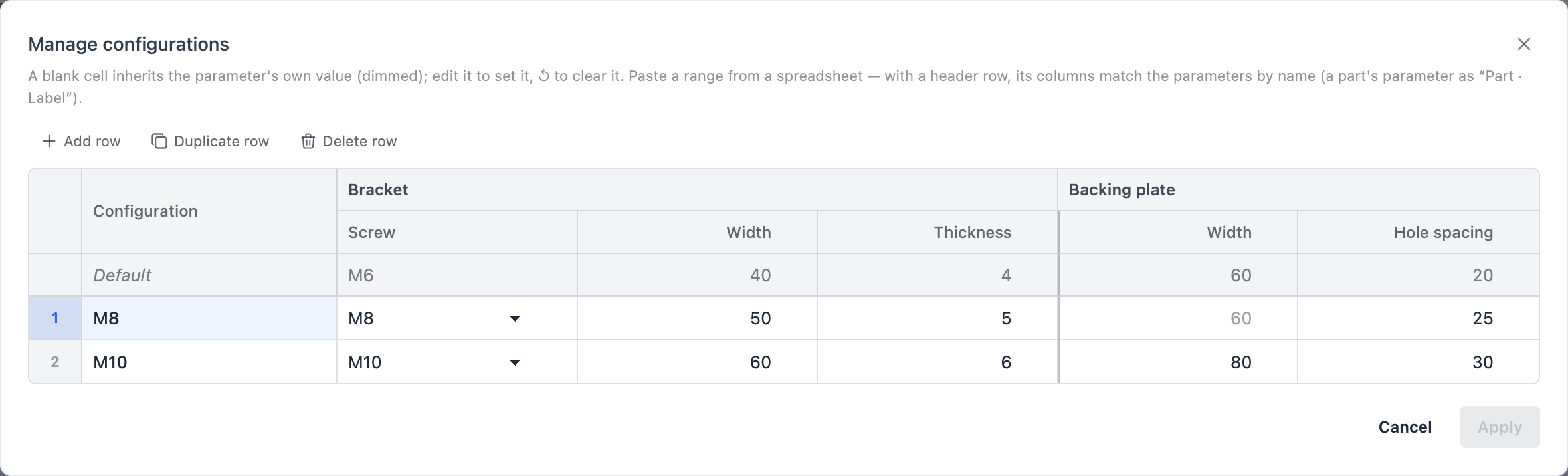
When pasting into this grid with a header row, a label that two parts share is written as Part · Label — Bracket · Width, Backing plate · Width (Part / Label, Part: Label and Part.Label work too) — and a bare shared label refuses the paste, since it could be either. A label only one part has can stay bare.
Each part's table, parameters and values go by the part's name, which is why every part of a file has its own name and is exported (the two part rules). A second part('Bracket', …) in the same file does not build: its row shows another part in this file is already named 'Bracket' — give each part its own name, and its body, table and parameters are left out until it is renamed.
Rules
configurations()is the first statement of the body. It must run before the body's firstparam(), because the active row has to be in place before any value is read. Aparam()before it is an error at the statement — declare configurations() before the body's first param() — and the editor flags it as you type. The panel always writes it first.- Once per body. A second
configurations()in the same body is an error: merge the rows into the first. - Only inside a body. At a file's top level, or in a
*.params.jsfile, it is an error. - Values are checked. The argument must be an object of objects; a row name must be non-empty and not
Default; a value must be something aparam()can produce — a number, string, boolean, or an array of numbers and strings. - Unknown keys warn. A key that no
param()of the build read is reported as a warning, not an error, naming the configuration — a key can belong to a parameter declared in a branch the row does not take. - A name no table declares renders Default with a warning that lists the declared names.
- Project parameters cannot be set by a row. A project parameter's value is its literal everywhere; a row key naming one warns and is ignored.
- Numbers are in the file's unit, like an
insert()override.
Exporting
fluidcad export exports the configuration on screen unless told otherwise, and by default exports every solid that configuration builds. Two flags choose the configuration:
| Flag | Commands | Effect |
|---|---|---|
--configuration <name> | step, stl, png | Export that configuration (Default for the literals). STEP and STL render it for the export alone; PNG shows it in the viewer for the capture and switches back. Either way the configuration on screen is the same afterwards. A name the model does not declare is an error that lists the declared names. |
--all-configurations | step, stl | Write one file per configuration: Default as <model>.step, each row as <model>-<Row>.step. |
npx fluidcad export step --configuration M8      # bracket.step, the M8 row
npx fluidcad export step --all-configurations    # bracket.step, bracket-M8.step, bracket-M10.step
npx fluidcad export stl --all-configurations -o build/bracket.stl
--shapes exports chosen solids instead of every solid. Each one is found in the exported configuration by its history, as in the viewport, and a configuration that does not build one fails with a message naming it. --all-configurations writes nothing unless every row exports. With -o, its path without the extension is the base name. The two flags cannot be combined, and --all-configurations does not apply to png. See CLI Reference.