Packages
A custom feature serves the project it lives in. A package carries features and parts from one project to others: a set of standoffs, a bolt circle, a fastener hole, a PCB plate. Packages are shared through the FluidCAD hub. You install one once into your library, and every project can use it from there. A project that uses a package records the exact version in its fluidcad.json, so the package's geometry never changes under the project when a newer version is installed.
This page follows @acme/mounting-hardware, with four features (Bolt circle, Boss, Fastener hole, Standoff) and two parts (Hub flange, PCB plate). It first makes and publishes the package, then installs it in another project and uses it there.
Package names
A package has one name, @acme/mounting-hardware. Its author writes it in the package's fluidcad.json, and it stays the same everywhere: in the packed file, on the hub, in the folder it is installed in, in the fluidcad.json of every project that uses it, and in every model that imports it.
- The part before the slash is the author's handle on the hub. The hub publishes a package only under its uploader's own handle, so
@acme/…packages come fromacme. - Each part is lowercase letters, digits and single dashes, and starts with a letter.
- Two publishers can each have a
…/mounting-hardware. A project can use both, because their names differ.
Feature ids are plain names (standoff). In a project that installs a package, each feature is told apart by the package it comes from, so @acme/mounting-hardware's standoff never clashes with another package's standoff or the project's own.
Making a package
Packaging a feature is the step after writing one. A package is a project whose fluidcad.json has a package block (the package's name and version) and whose features and parts sit in three folders. The folders decide what the package shares:
mounting-hardware/
├── fluidcad.json              ← the package block
├── README.md
├── features/                  ← *.feature.js files, with their pictures
│   ├── bolt-circle.feature.js
│   ├── bolt-circle.svg
│   ├── standoff.feature.js
│   └── standoff.svg
├── parts/                     ← *.part.js files
│   ├── hub-flange.part.js
│   └── pcb-plate.part.js
├── assemblies/                ← *.assembly.js files
│   └── plate-stack.assembly.js
├── docs/                      ← optional: a page per feature, with its images
│   └── standoff.md
└── bench.part.js              ← a test model: outside the folders, never packed
- Every feature in
features/, every part inparts/and every assembly inassemblies/is shared. Subfolders are fine, and so are plain.jshelper files inside the three folders. - The package's own parts import its features relatively:
import { boltCircle } from '../features/bolt-circle.feature.js'. An assembly inserts its parts the same way. - A feature's icon and the pictures of its dialog sit next to its file in
features/, by the paths its description names, and travel with it. A picture the description names but the folder lacks stops packing. docs/holds pages for the people and coding assistants who use the package: markdown pages and the images they show, in subfolders if you like. Write one per feature, saying what it does and, for a feature with names of its own, what each name holds and in what order. It holds no code: a script there stops packing, and so does a file that is neither a page nor an image. A page may be up to 256 KB, an image 2 MB, and the whole folder 4 MB and 200 files.README.md,LICENSEandCHANGELOG.mdat the root travel with the package.- The files a part reads as it builds travel with it, at the same paths: the geometry of a STEP file it loads (
imports/<name>.brepwith its colour and unit files) and a font file its text uses (fonts/Brand.ttf). Only what the parts read goes; another import inimports/stays in the project. A file a part reads fromnode_modules, from an installed package, or from outside the project through a link, stops packing. Installed, the package reads these files from its own folder (Files from the project using it). - Anything else outside the three folders stays in the project: test models,
init.js, notes. A test model at the root imports./features/standoff.feature.js. - To be published on the hub, a package needs at least one part or assembly, so its page has a model to show. A package of features alone still packs, but can't be published.
A new package
-
On the start screen, click New Package, beside New Project.
-
Type the package name,
@acme/mounting-hardware. The part before the slash is your hub handle; the part after it names the package (Package names). A name that doesn't fit is refused in the dialog, with the rule.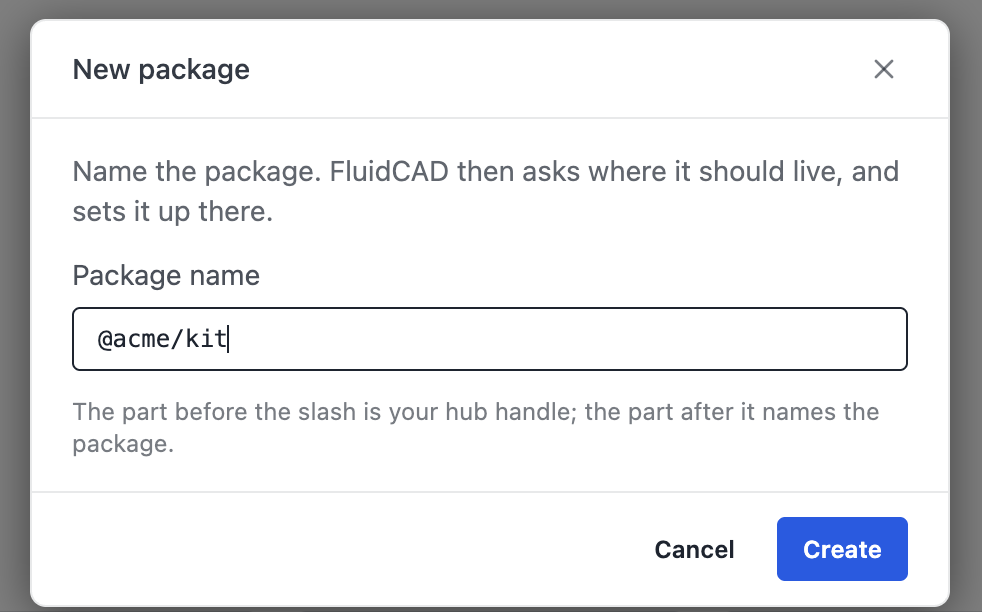
The desktop app then asks where the package should live, in the same folder dialog as New Project (Create package): pick an empty folder. File ▸ New Package… opens the same name dialog. In the browser (
npx fluidcad), the folder picker's create form has a Project / Package choice; Package adds the name field, and the folder name follows the part after the slash until you type one. Create package opens it.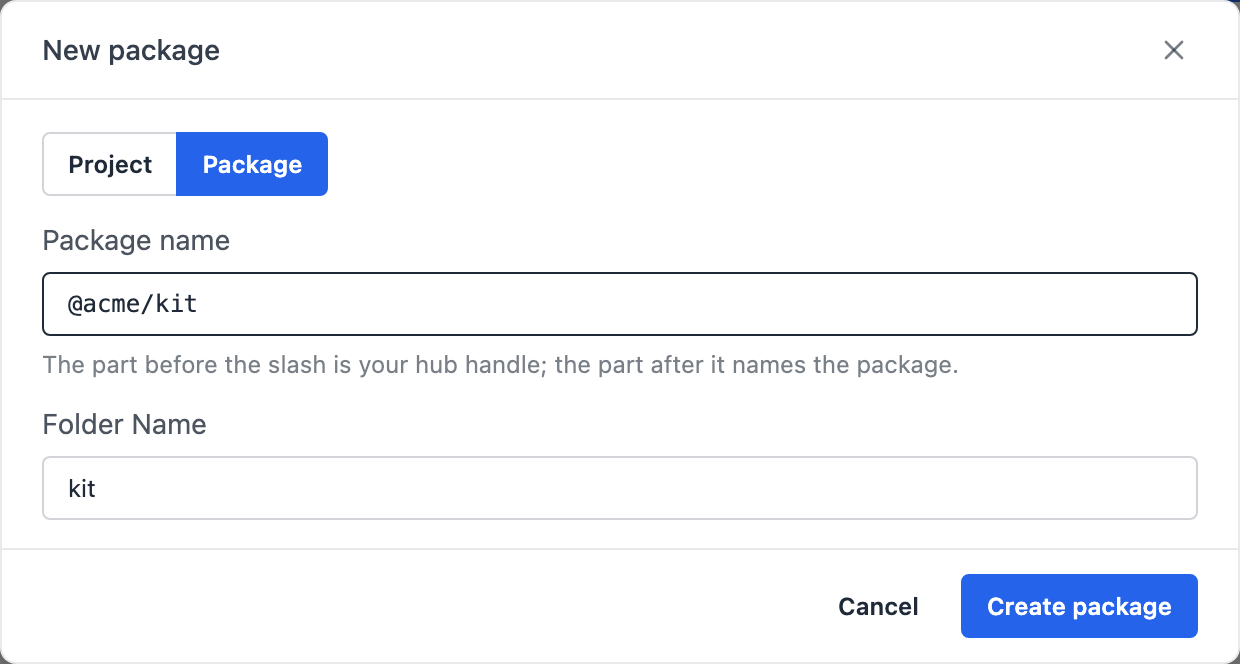
-
The package opens on
parts/part1.part.js. Its folder holds the block (version1.0.0), the three folders, aREADME.mdwith the name as its heading, and the files every project has (init.js,jsconfig.json,.gitignore). On the start screen its card wears a Package badge.
Model as in any project: write the features in features/ (Custom Features shows how), the parts in parts/, the assemblies in assemblies/, and try them in test models at the root. Only new packages are made this way; FluidCAD doesn't turn an existing project into a package.
From the terminal, npx fluidcad init --package @acme/mounting-hardware writes the same folder in an empty directory. For a project that already holds the features and parts, npx fluidcad package init --name @acme/mounting-hardware writes the block alone; move the files into the three folders yourself. Signed in to the hub (npx fluidcad login), both take a name without the handle and add yours; signed out, it is refused. See Project configuration for every key of the block.
Files from the project using it
A load() or .font() written in a package's files reads the package's own file, the one that travels with it, never a file of the same name in the project that uses the package. A name that project passes in is the exception: a nameplate part that takes a font file as a parameter must read that file from the project. Say so with { from: 'project' }:
import { part, param, sketch, text, extrude } from 'fluidcad/core';

export const nameplate = part('Nameplate', () => {
  const font = param('Font', 'fonts/Brand.ttf', 'text', { description: 'A font file in your project' });
  sketch('xy', () => {
    text('ACME').size(8).font(font, { from: 'project' });   // the project's fonts/…
  });
  extrude(1);
});
load(name, { from: 'project' }) does the same for a STEP file the project imported. Without it, the name is read in the package, and a file the package doesn't carry stops the part with a sentence that names the package and points to { from: 'project' }:
Font file not found: fonts/Brand.ttf in @acme/[email protected]. If the name comes from the model using the package, read it with .font(name, { from: 'project' }).
A missing file is never looked for in the other place. While you write the package, its own project is both places, so both read the same file; the difference shows once the package is installed.
Describing its features
Inside its own project, the person who wrote a feature knows what each row means. Once it travels, its descriptions say it: the dropdown's tooltip, each row's tooltip, and what a coding assistant reads before it calls the feature. Give the feature and each of its inputs a description, and each param() of a shared part one too:
height: { type: 'length', default: 10, min: 0, description: 'How far the boss rises from the face' },
Packing lists what has none as a warning. Warnings never stop the package:
1 warning (the package still packed):
  ! features/standoff.feature.js: 4 fields without a description — standoff: face, height, outer, hole. Give each a `description`.
- A description that only repeats the label (
'Height'forheight), or runs past 1,000 characters, counts as none. - An option's
descriptionis the line under it in the dialog, and isn't checked. - A link or an image in a
docs/page that leads to no file the package ships, or out of the package, is a warning too:docs/standoff.md:6 links to ./images/standoff.svg, which leads to no file the package ships.
Generated parts and assemblies
A package can share generated parts and assemblies: a gear an assembly inserts by its values, a wardrobe with its doors on hinges. They go in the same folders:
- a
definePartexport in a*.part.jsfile inparts/; - a
defineAssemblyexport in a*.assembly.jsfile inassemblies/; - the features and generator classes they use in
features/, next to their pictures.
Packing lists each export in the manifest as a part or an assembly, with its values and its dialog, so the assembly toolbar's Generate Parts dropdown and the Insert dialog offer it without building it. Before it does:
- It builds each one with its default values. One that fails stops packing.
- Every image a definition names ships at its path: its icon, the pictures of its dialog and of its values' options. A path may climb out of its module's folder with
../, never out of the package. An image outside the package, or missing, stops packing. - A package of generated definitions runs on FluidCAD 0.0.49 or newer, and its
minEnginemay not say less. Without one in the package block it is the project'senginepin (Project configuration). Packing refuses a lower one, naming the export and the version to set.
Installed, they are imported by the package's name, like its parts: import { cabinetAssembly } from '@fluidcad/cabinets'.
Publishing
In a package, the top bar's Share seat reads Publish.

-
Click Publish. The dialog shows the package's name and version, a Publish as field, and where the package stands on the hub. The field proposes the next major version above the latest one on the hub (the package's own version while nothing is published yet); type over it to publish another. Publish writes that version into
fluidcad.jsonbefore it packs. Signed out, it says so and offers Sign in: the hub's sign-in page opens in your browser, and the dialog comes back signed in. -
For a version that follows a published one, type the release notes (at most 280 characters; left empty, the hub takes the
CHANGELOG.mdsection for the version). A first version has no field: the hub asks in the next step. -
Click Publish (Check runs the same steps against the hub without storing anything). FluidCAD packs the package with the running engine and shows the summary: what each folder holds, the number of files and the size, the archive's integrity hash, and what happens next. Under it come the warnings, one row per warning naming its file, with the fields that lack a description folding out under it. They don't stop the upload. Nothing is sent yet.
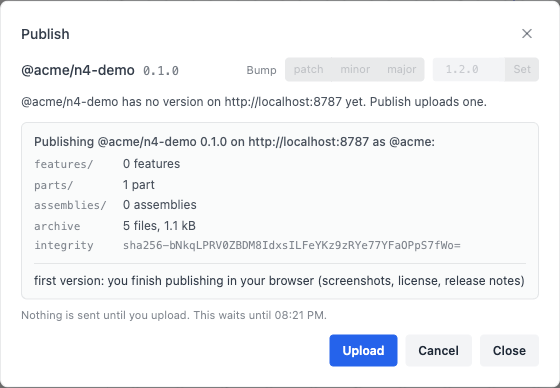
-
Click Upload. A first version becomes a draft: the hub's publishing wizard opens in your browser, where you add screenshots, a license and release notes, and submit it; an admin reviews it before it is public. The dialog shows the draft and the day a draft nobody touches is deleted; Check and Publish give way to Continue, which opens the wizard again, and Withdraw.
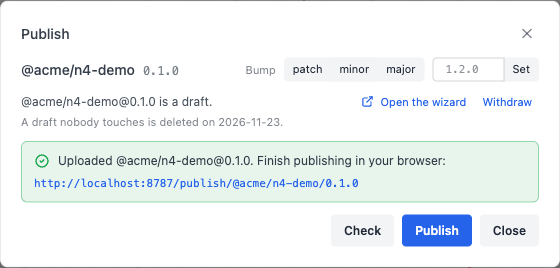
A later version goes straight to review, with View its status. A version the admins turned down shows their note and Publish again under the same version number. The latest published version has Manage on the hub.
Withdraw deletes the draft or the version in review from the hub, after a confirmation; its number is free again. The dialog refuses to publish while a file of the package has unsaved changes (save first), while another version of it is a draft or in review (withdraw it, or finish it on the hub), and when the version is not above the latest one on the hub (type a higher one in Publish as). A broken package block opens the dialog on the problem.
Before anything is uploaded, FluidCAD builds every part and assembly and checks every feature; a problem stops it with a sentence naming the file. A part file inside features/, an assembly inside parts/, or an import of a file outside the three folders stops it too. The package holds the three folders' files, the files they import, the pictures the features declare, the imported geometry and font files the parts read, docs/, and README.md, LICENSE and CHANGELOG.md, as they are. The project's test models and init.js stay out.
To release a new version: edit the files and publish again; the dialog proposes the next major version, or type the one you want.
From the terminal, npx fluidcad publish runs the same steps and prints the same summary, asking before the upload (--notes <text>, --dry-run, --status for where the package stands, --withdraw); npx fluidcad version minor (or patch, major, or an exact 1.2.0) raises the version. To look at what would be published without publishing anything, pack the project. Publishing never needs this: Publish and npx fluidcad publish pack on their own.
npx fluidcad pack
Packed @acme/mounting-hardware 0.1.0 → …/acme-mounting-hardware-0.1.0.fluidpkg
  features/   4 features: boltCircle, boss, fastener, standoff
  parts/      2 parts: hubFlange, pcbPlate
  assemblies/ 1 assembly: plateStack
  29 files, 18.2 kB, unit mm
A package with a docs/ folder adds a docs/ line naming its pages, and the warnings follow the summary. It runs the same checks, then writes into the project the file that would be uploaded. Feature ids are plain names (standoff); two features of one package can't share one. The same project packed twice gives the same file. The CLI reference has every command and flag.
A package reaches other projects only through the hub. Until an admin approves it, try the package in its own project, with the test models at its root and the parts and assemblies in its folders. There is no step that installs your own file into another project.
Installing a package
Packages install from the hub, in the app or from the terminal.
In the app, click FluidCAD Hub on the left rail. The Hub panel opens beside the scene: search the hub's packages, and open one to see its screenshots, parts, versions and README. Its Install 0.1.0 button installs it where New packages go to says (see Your library). The arrow beside it, Install into…, chooses into my library or into this project instead. A package that is already there reads Installed, and one the project uses at an older version offers Upgrade to the newer one. The top bar's Packages dialog has Find packages in the Hub panel too.
From the terminal:
npx fluidcad install @acme/mounting-hardware
FluidCAD downloads the package, checks that its files are the ones the hub lists, and installs it, printing one line with what the package holds:
✓ Installed @acme/[email protected] into your library · 4 features, 2 parts · pinned in fluidcad.json
It installs into your library (--project: into the project's packages/ folder, committed with it; the default is the New packages go to setting) and, in a project, records the package in fluidcad.json. In a project, npx fluidcad install alone downloads every package the project records but this machine doesn't have. The CLI reference has every form and flag.
A package's code runs in the FluidCAD engine with your permissions, and neither fluidcad install nor the Hub panel's Install asks first. Install only packages you trust.
Installing the same version again with the same contents changes nothing. The same version with different contents is refused unless you add --replace: an installed version never changes by itself.
A .fluidpkg file doesn't install: it is the archive fluidcad pack writes so you can look inside a package. A machine that can't reach the hub uses the packages its library already holds, or a project's own copies (Copy into project, below).
Using a package's features
The toolbar's Custom dropdown, the last button on the part toolbar, lists your project's own custom features under This project, then each package under its name and version. Click the pin beside a package's name to put its features on the toolbar, in a group of their own before Custom. Right-click that group and choose Unpin to put them back in the dropdown. Pins are yours, so a pinned package is on the toolbar in every project that offers it.
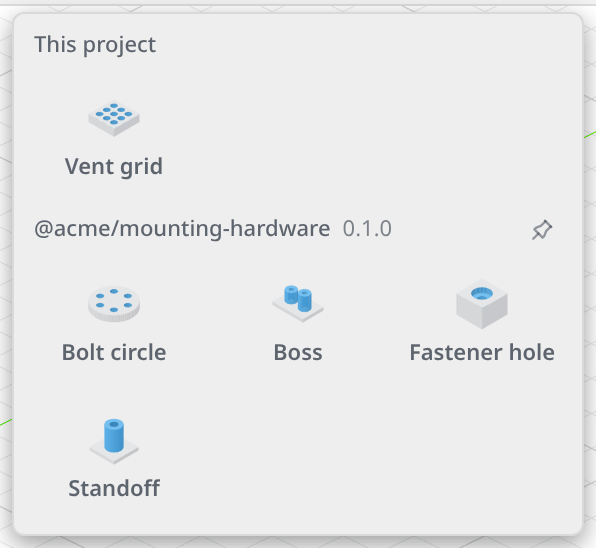
Click a feature to open its dialog, the same way as a project's own feature: pick the face, type the values, click Apply. The statement imports the feature by the package's name, import { standoff } from '@acme/mounting-hardware', not by a path. The first time you use a feature from a package, FluidCAD records the package in fluidcad.json. No package files are copied into the project.
The code behind it
import { part, sketch, line, extrude } from 'fluidcad/core';
import { coincident, horizontal, vertical, distance, fix } from 'fluidcad/constraints';
import { standoff } from '@acme/mounting-hardware';   // written by the dialog: the package's name, not a path

// A 120 × 80 × 3 electronics tray with a standoff in the middle of its top face.
export const tray = part('Electronics tray', () => {
  sketch('xy', () => {
    const b = line([0, 0], [120, 0]);
    const r = line([120, 0], [120, 80]);
    const t = line([120, 80], [0, 80]);
    const l = line([0, 80], [0, 0]);
    coincident(b.end(), r.start());
    coincident(r.end(), t.start());
    coincident(t.end(), l.start());
    coincident(l.end(), b.start());
    horizontal(b);
    vertical(r);
    horizontal(t);
    vertical(l);
    fix(b.start(), [0, 0]);
    distance(b.start(), b.end(), 120);
    distance(r.start(), r.end(), 80);
  });
  const e = extrude(3);

  // The package's Standoff on the tray's top face: 8 tall, an M3 clearance bore.
  // Only the values that differ from the feature's defaults are written.
  standoff(e.endFaces(), { height: 8, hole: 3.2 });
});
The record it writes in fluidcad.json is the version and a hash of the package's contents:
{
  "engine": "0.0.46",
  "dependencies": {
    "@acme/mounting-hardware": {
      "version": "0.1.0",
      "integrity": "sha256-9gPApDnFu7GQz1+By40SoZnvxLgLSZDezAbqJSxF2Mw="
    }
  }
}
See Project configuration for the format.
Inserting a package's parts
A package's parts are inserted into an assembly, like the parts of your own files. In an assembly, Insert lists the project's parts under This project and each package's parts under the package's name. Click a tile, then Insert. A package from your library that the project doesn't use yet is marked not in this project: inserting one of its parts records it in fluidcad.json, as using one of its features does.
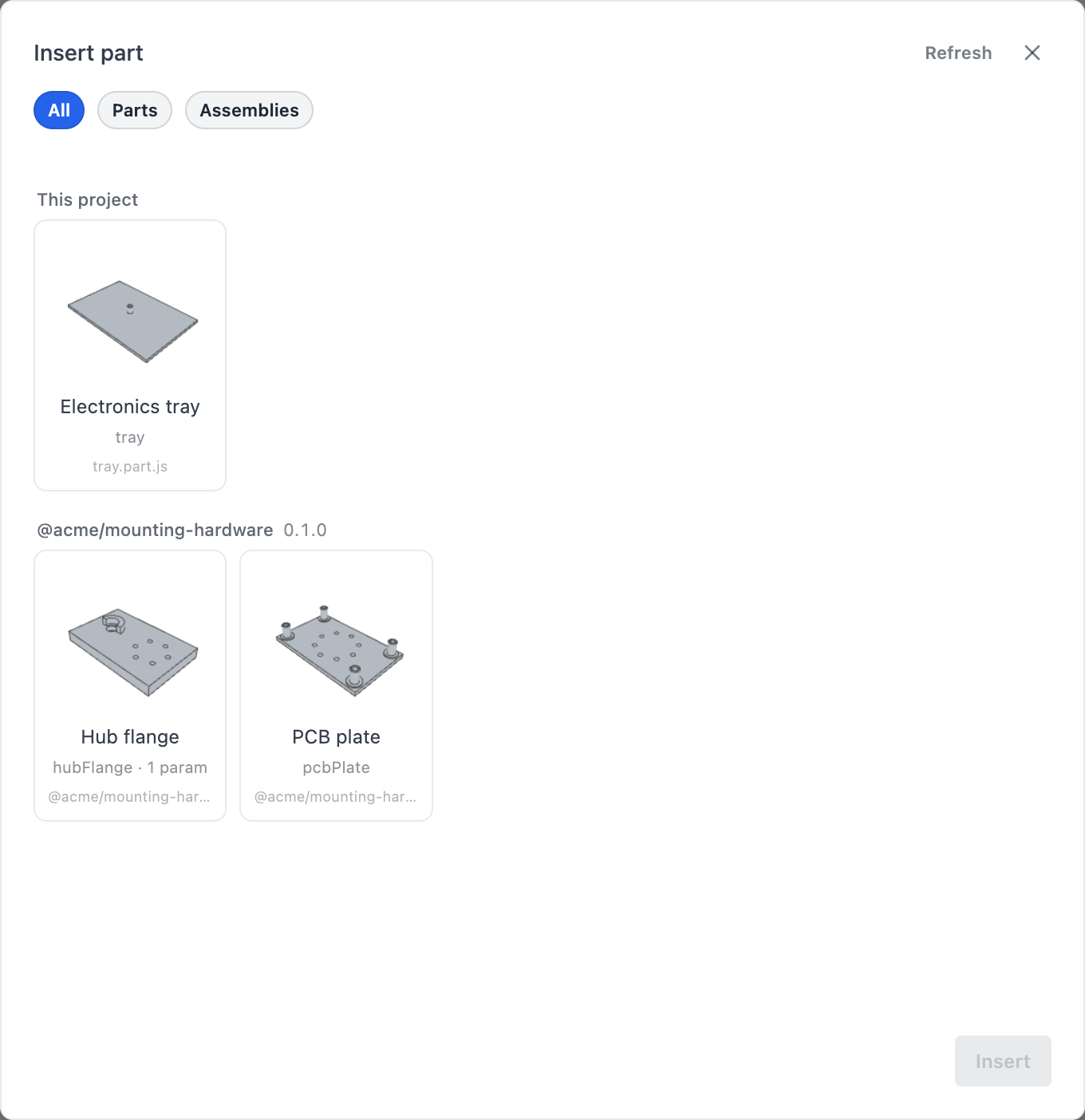
The code behind it
import { assembly, insert } from 'fluidcad/core';
import { tray } from './package-tray.part.js';
import { pcbPlate } from '@acme/mounting-hardware';   // a part from the package, imported by its name

// The controller enclosure: the project's own tray, with the package's PCB plate on it.
export const controller = assembly('controller', () => {
  insert(tray).grounded();
  // Written by Insert part; the translate is the pose you give it with the gizmo.
  const pcbPlate1 = insert(pcbPlate).name('pcbPlate1').translate(60, 40, 3);
});
A part file shows only the parts it declares. Using the package's Standoff in tray.part.js does not add the package's PCB plate or Hub flange to the tray; they appear only where an assembly inserts them.
A package's part is built in the package's own unit, takes its material from the package and reads the geometry it loads and the font files its text uses from the package, so its size and mass are the same in every project.
A generated part or assembly has a tile of its own, marked generated part or generated assembly. Clicking it opens the definition's dialog instead of queueing it: see Generated Parts and Assemblies.
The packages of a project
The Packages button on the top bar opens Packages in this project: every package the project uses, its version, and where it loads from.
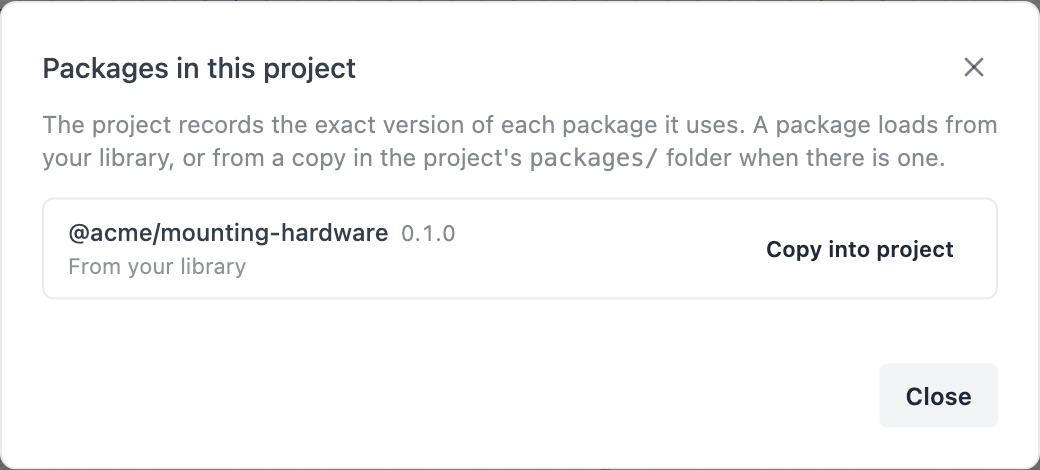
- Copy into project copies the package from your library into the project's
packages/folder. Use it for a project that must carry its packages: committed to git, zipped for a teammate, or opened on a machine that doesn't have the package. A copy in the project wins over the library. - Use from library removes that copy again; the package loads from your library.
The render doesn't change in either direction: the copy and the library hold the same files, checked against the hash in fluidcad.json. The packages/ folder does not show in the editor's file list.
When a package is missing
A project whose package is not installed on this machine (a project from a teammate, or after you removed the package) does not render. The error banner names the package and the command that downloads it, with Install from the hub. The top bar's Packages button carries a red dot until it is installed, and Packages in this project shows the same command and button for each missing package. Install from the hub downloads the version the project recorded and shows what it holds, its files and its size before Install.

Click it, or run the command, npx fluidcad install @acme/[email protected], or npx fluidcad install for every missing package: FluidCAD downloads the version the project recorded and checks it against the project's hash, and the model renders again, without a restart. The other reasons a package can't load are listed in the same banner:
| Banner | What to do |
|---|---|
`@acme/mounting-hardware` is not a dependency of this project — install it or add it from your library. | The file imports a package the project has not recorded. Use one of its features from the Custom dropdown, or run npx fluidcad install @acme/mounting-hardware. |
The installed `@acme/mounting-hardware` 0.1.0 differs from the one this project was built with. | The installed copy is not the one the project recorded. Download the original with npx fluidcad install @acme/[email protected] --replace. |
`@acme/mounting-hardware` 0.1.0 needs FluidCAD 0.0.50 or newer; this engine is 0.0.46. | Open the project on a newer engine. |
Installed packages are read-only
A package never changes once installed. Its files are read-only on disk, and FluidCAD refuses every edit aimed at them: a dialog, a breakpoint, a material or a connector on a package's part. A History row that comes from a package's file carries a package mark, and double-clicking it says the row is read-only. To change a package, change it in its own project, raise its version and publish it again.
The code editors know a package that a project records: hovering standoff( shows its values, completion offers them, and in VS Code and Neovim go to definition opens the package's read-only file. For VS Code and Neovim, FluidCAD keeps a small types folder at node_modules/@types/acme__mounting-hardware; it is rewritten when the project's packages change, and is safe to delete. Never install a package into node_modules/@acme/mounting-hardware yourself: FluidCAD refuses a package it finds there.
Your library
The Packages tab of the settings holds your library: the packages installed on this machine.
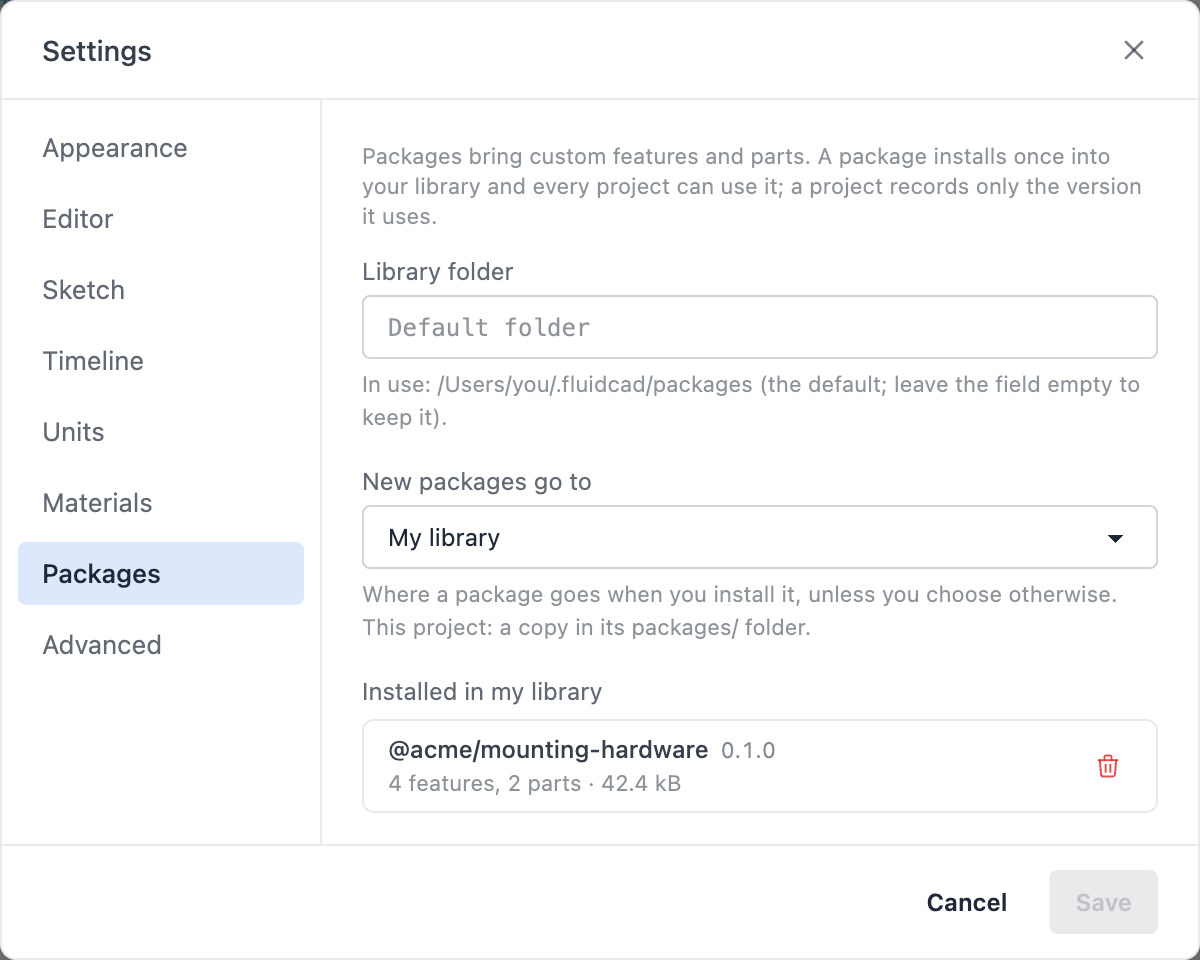
- Library folder: where the library lives. Empty uses the default, the home directory's
~/.fluidcad/packages. In the desktop app Browse… picks a folder. After a change, the tab offers to copy the packages of the old folder into the new one (Copy packages / Leave them); nothing moves by itself. Projects record packages by name and version, not by folder. - New packages go to: My library or This project, where an install puts a package unless told otherwise.
- Installed in my library: each package with its version, contents and size. The bin removes it after a confirmation: projects that use it will ask for it again.
Like every settings tab, the folder and the target wait for Save.