Booleans and Fusion
FluidCAD automatically merges (fuses) solids that touch. This guide explains how auto-fusion works and how to use explicit boolean operations when you need more control.
Auto-fusion
By default, when you extrude a sketch and the result touches an existing solid, they merge into one:
import { sketch, extrude } from 'fluidcad/core';
import { rect, circle } from 'fluidcad/core';

sketch("xy", () => {
    rect(60, 60).centered()
})

extrude(30)

sketch("xy", () => {
    circle([0, 0], 40)
})

extrude(50)
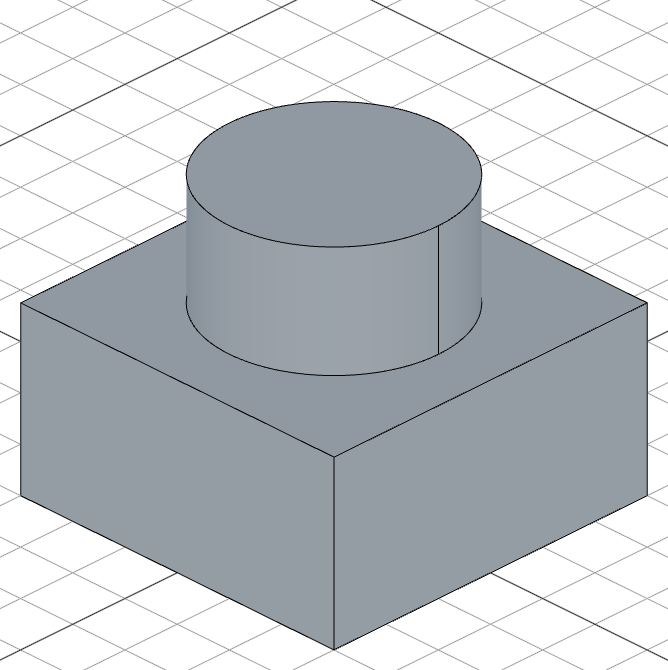
The result is a single solid — the box with a cylinder sticking out of the top.
Creating separate solids
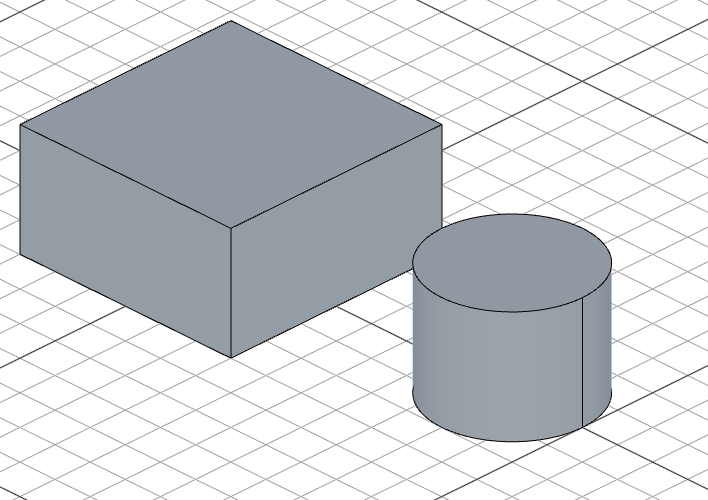
Use .new() to prevent auto-fusion:
import { sketch, extrude } from 'fluidcad/core';
import { rect, circle } from 'fluidcad/core';

sketch("xy", () => {
    rect(60, 60).centered()
})

const box = extrude(30)

sketch("xy", () => {
    circle([80, 0], 40)
})

const cyl = extrude(30).new()
Explicit boolean operations
Fuse (union)
Merge two or more solids into one:
import { fuse } from 'fluidcad/core';

fuse(solid1, solid2)
Subtract (difference)
Remove one shape from another:
import { subtract } from 'fluidcad/core';

subtract(solidToKeep, solidToRemove)
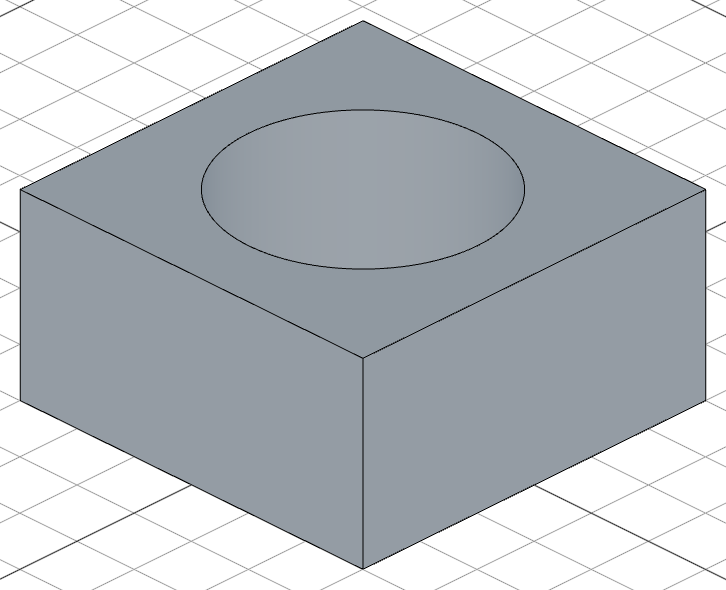
subtract() also works inside sketches to cut 2D geometries from each other:
sketch("xy", () => {
    const outer = rect(100, 60)
    const inner = rect([10, 10], 80, 40)
    subtract(outer, inner)
})
Common (intersection)
Keep only the volume where two solids overlap:
import { common } from 'fluidcad/core';

common(solid1, solid2)
When to use what
| Scenario | Approach |
|---|---|
| Adding a boss to an existing solid | Just extrude — auto-fusion handles it |
| Creating a hole | sketch on a face + cut() |
| Merging two separate objects | fuse(a, b) |
| Subtracting a shape from another | subtract(keep, remove) (works in 3D and 2D sketches) |
| Keeping only the overlap | common(a, b) |
| Building multiple independent parts | Use .new() or part() |