Extrude
extrude() pulls a sketch upward (along the plane's normal) into a solid. It's the most common way to turn a 2D profile into 3D geometry.
import { sketch, extrude } from 'fluidcad/core';
import { rect } from 'fluidcad/core';

sketch("xy", () => {
    rect(100, 60).centered()
})

const e = extrude(30)
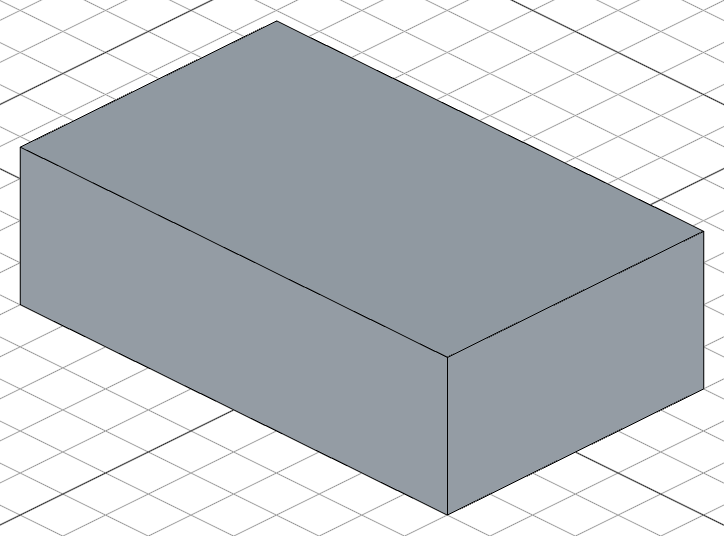
No-argument extrude
extrude() // uses a default distance of 25
When called with no arguments, extrude() uses a default distance and supports interactive mouse input in the viewport — drag to set the distance visually.
Symmetric extrude
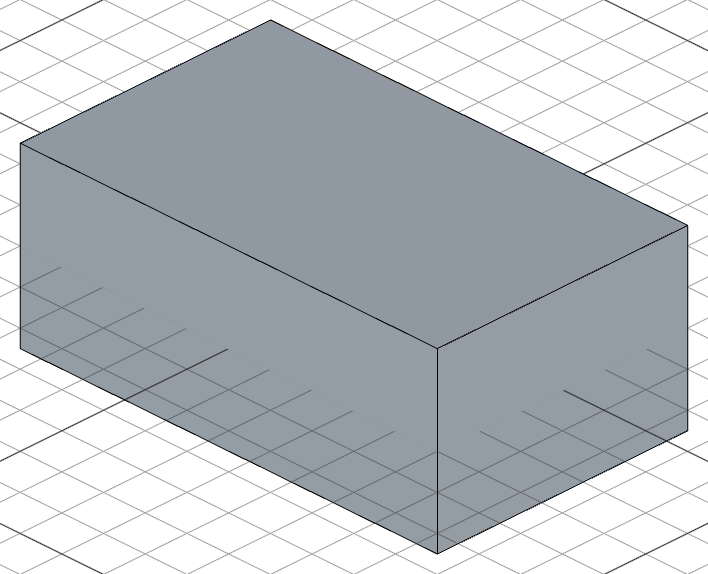
Extrude equally in both directions from the sketch plane:
import { sketch, extrude } from 'fluidcad/core';
import { rect } from 'fluidcad/core';

sketch("xy", () => {
    rect(100, 60).centered()
})

extrude(40).symmetric()
Draft angle
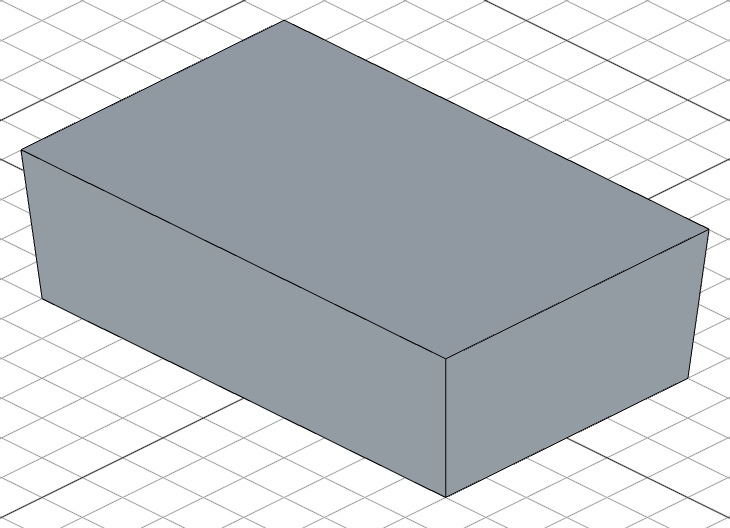
Add a taper to the extrusion:
import { sketch, extrude } from 'fluidcad/core';
import { rect } from 'fluidcad/core';

sketch("xy", () => {
    rect(100, 60).centered()
})

extrude(30).draft(5)
Extrude to face
Instead of a fixed distance, you can extrude until the solid reaches a target face. Pass a face reference to extrude():
// @screenshot waitForInput
import { select, sketch, plane, extrude } from 'fluidcad/core';
import { face } from 'fluidcad/filters';
import { circle, rect } from 'fluidcad/core';

sketch(plane("xy"), () => {
    rect([100, 250], 50, 50)
})

extrude(100);

const targetFace = select(face().onPlane("-xz", 250))

sketch(plane("front"), () => {
    circle(60)
})

extrude(targetFace);
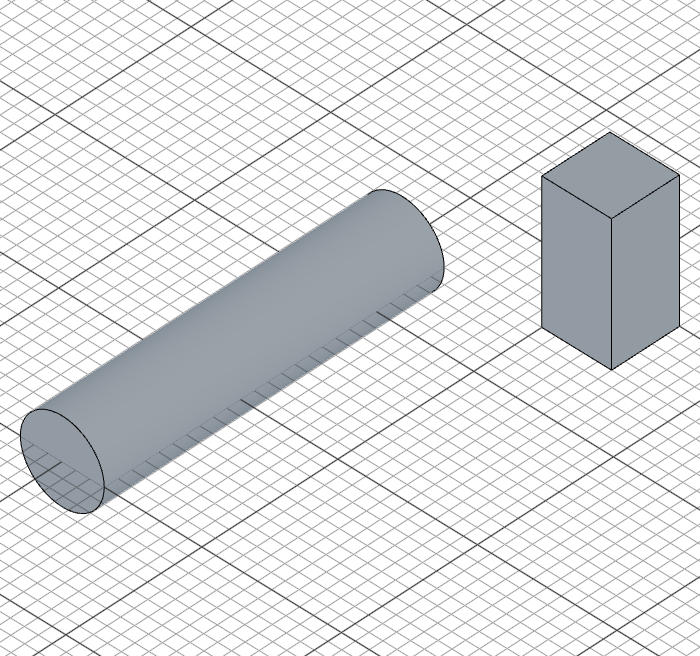
Use select() with a face filter to grab the target face. The extrusion stops when it meets that face.
Blending with non-planar faces
When the target face is angled or curved (e.g. from a drafted extrude), the extrusion end blends to match the face shape:
// @screenshot waitForInput
import { color, extrude, plane, sketch, vMove } from 'fluidcad/core';
import { rect } from 'fluidcad/core';

sketch(plane("xy"), () => {
    rect(200, 100).centered()
})

const e = extrude(20).draft(15)

color("red", e.sideFaces(0));

sketch(plane("yz", { offset: 100 }), () => {
    vMove(20);
    rect(20, 20).centered()
});

extrude(e.sideFaces(0));
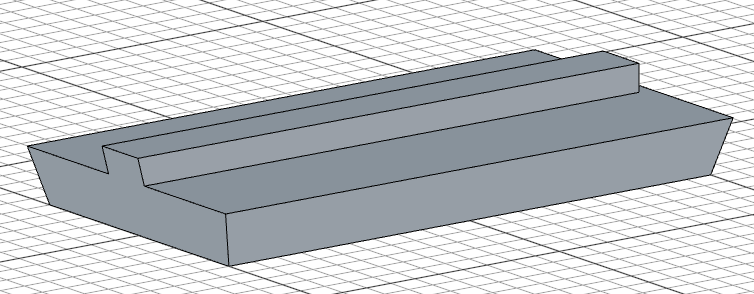
The red face is the target — the extrusion conforms to its angled surface.
Extrude to first / last face
Instead of selecting a specific face, use 'first-face' or 'last-face' to automatically extrude to the nearest or farthest intersecting face along the extrusion direction:
// @screenshot waitForInput
import { sketch, plane, extrude } from 'fluidcad/core';
import { circle, rect } from 'fluidcad/core';

sketch(plane("xy"), () => {
    rect([0, 250], 50, 50)
})

extrude(100)

sketch(plane("front"), () => {
    circle(60)
})

extrude('first-face');

With cylindrical targets, the extrusion blends to the curved surface:
// @screenshot waitForInput
import { sketch, plane, extrude } from 'fluidcad/core';
import { circle } from 'fluidcad/core';

sketch(plane("xy"), () => {
    circle([0, 300], 100)
})

extrude(100)

sketch(plane("front"), () => {
    circle(60)
})

extrude('first-face');

Extrude to face, 'first-face', and 'last-face' currently work with planar and cylindrical faces only.
Thin extrude
.thin() creates a thin-walled solid by offsetting the profile edges instead of extruding a filled face. The offset distance controls the wall thickness:
import { sketch, extrude } from 'fluidcad/core';
import { rect } from 'fluidcad/core';

sketch("xy", () => {
    rect(100, 60).centered()
})

extrude(30).thin(5)
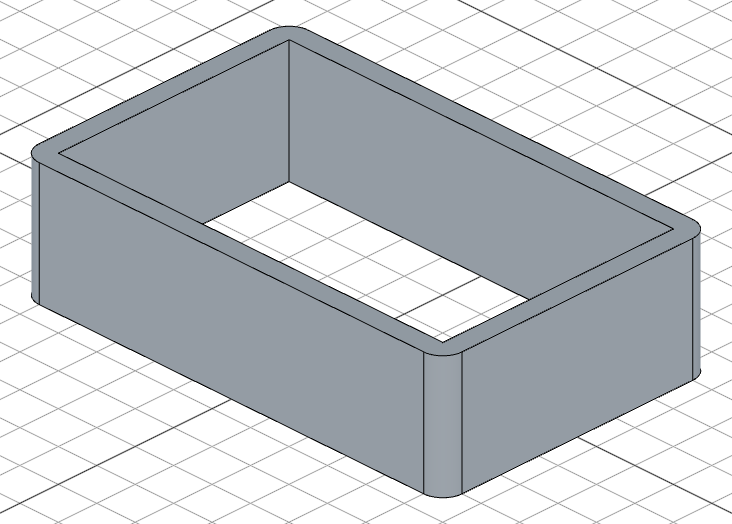
Positive values offset outward, negative values offset inward:
extrude(30).thin(5)    // 5 units outward
extrude(30).thin(-5)   // 5 units inward
Two-direction offset
Pass two values to offset in both directions. The second offset automatically goes in the opposite direction of the first:
import { sketch, extrude } from 'fluidcad/core';
import { rect } from 'fluidcad/core';

sketch("xy", () => {
    rect(100, 60).centered()
})

extrude(30).thin(5, -3)
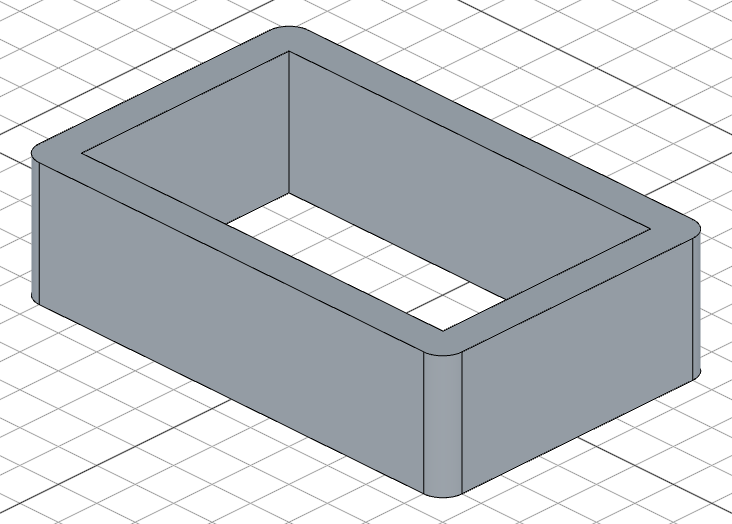
Open profiles
Thin extrude also works with open profiles (unclosed curves). The ends are capped with straight lines:
import { sketch, extrude } from 'fluidcad/core';
import { hLine, vLine } from 'fluidcad/core';

sketch("xy", () => {
    hLine([0, 0], 80)
    vLine(40)
})

extrude(20).thin(5).new()
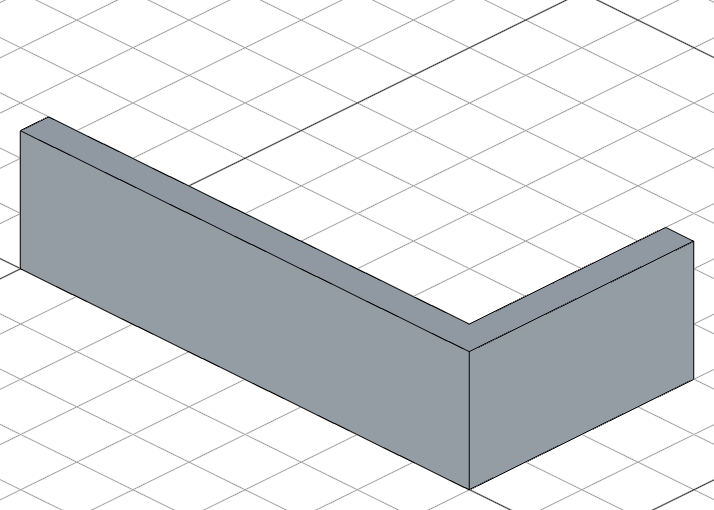
Two-direction offset works with open profiles as well — the original curve is not used, only the two offset curves:
import { sketch, extrude } from 'fluidcad/core';
import { hLine, vLine } from 'fluidcad/core';

sketch("xy", () => {
    hLine([0, 0], 80)
    vLine(40)
})

extrude(20).thin(5, -3).new()
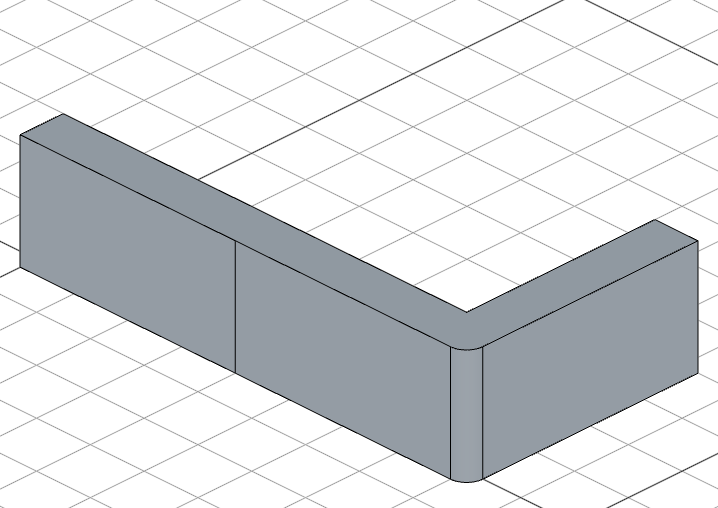
Thin extrude works with all extrude modes — .symmetric(), .draft(), .remove(), two distances, and face targets.
Region picking
When a sketch has multiple overlapping shapes that create several regions, use .pick() to select which region to extrude:
import { sketch, extrude } from 'fluidcad/core';
import { circle } from 'fluidcad/core';

sketch("xy", () => {
    circle(60)
    circle(30)
})

extrude(20).pick([20, 0])
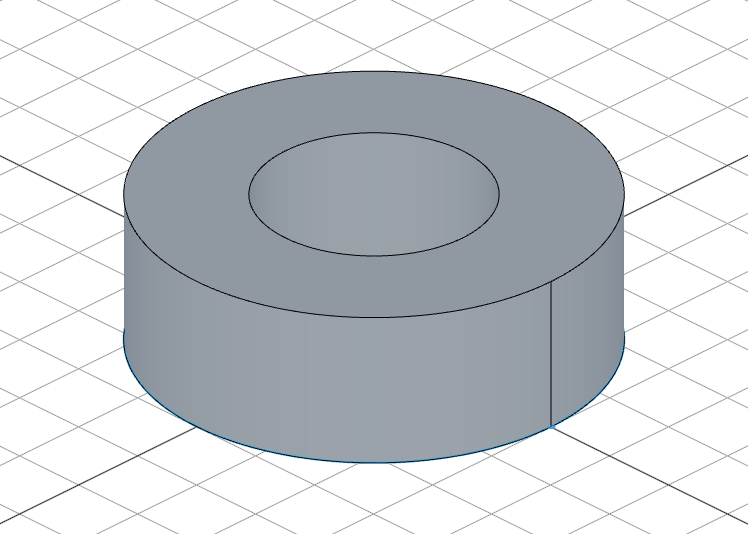
Call .pick() with no arguments to enter interactive mode. Click on regions in the viewport to select them.
When you pick a region by coordinates (or by clicking in interactive mode), those coordinates are saved in your code. If the sketch dimensions change later, the pick point may fall outside the resized regions, breaking the model.
This makes .pick() great for fast prototyping or models with fixed dimensions. For parametric models where dimensions are likely to change, prefer structuring your sketches so each sketch contains only the regions you need — avoiding the need for .pick() altogether.
Accessing geometry
const e = extrude(30)

e.endFaces()       // top face(s)
e.startFaces()     // bottom face(s)
e.sideFaces()      // side face(s)
e.endEdges()       // edges on the top
e.startEdges()     // edges on the bottom
e.sideEdges()      // edges on the sides
e.internalEdges()  // edges created inside (from fusion)
e.internalFaces()  // faces created inside (from fusion)
Fusion scope
By default, extrude fuses with any touching solid. Control this with:
extrude(30).new()              // create a separate solid, don't fuse
extrude(30).add()              // fuse with all touching solids (default)