User Interface
Once your editor is set up and your model is rendering, here's what you'll see in the FluidCAD viewport.
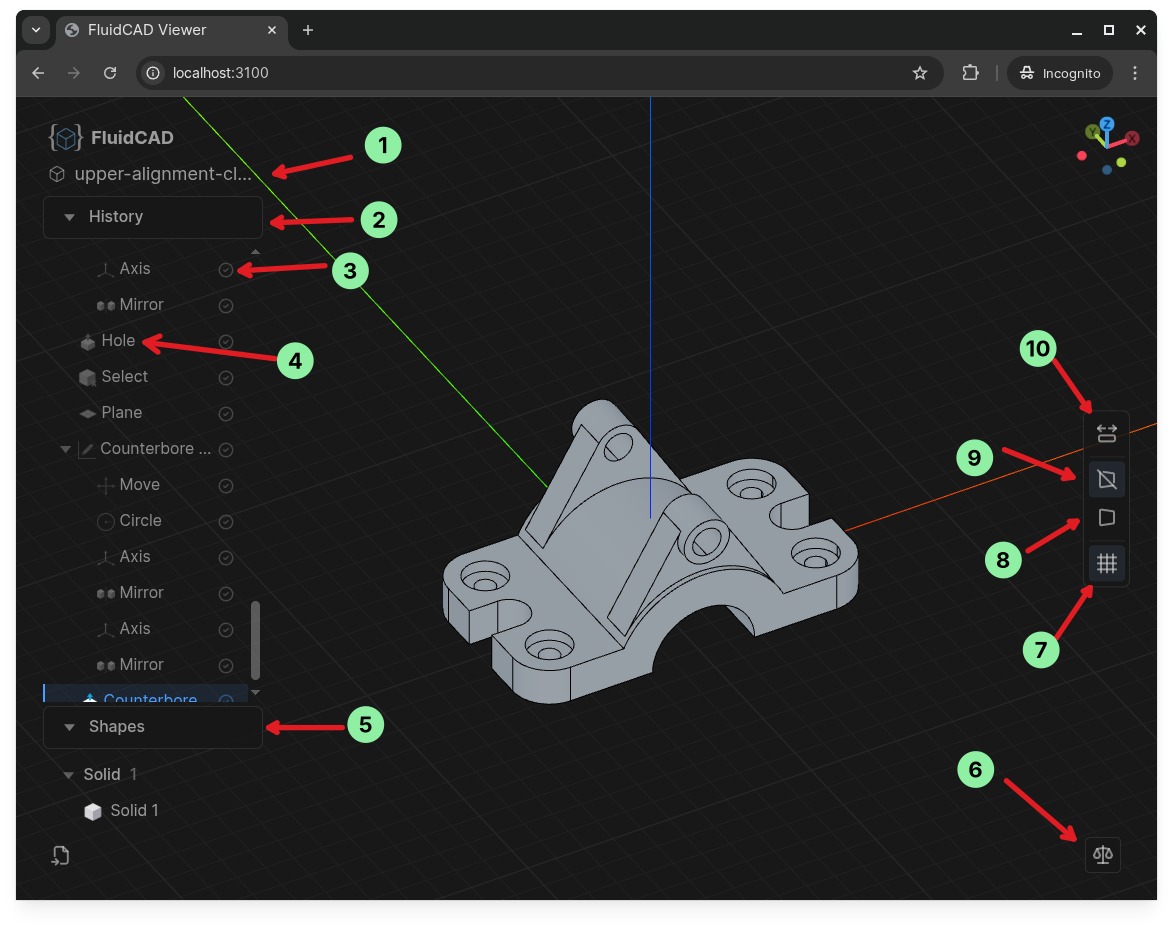
| # | Element | Description |
|---|---|---|
| 1 | File name | The name of the currently open .fluid.js file. |
| 2 | History panel | Lists every feature (operation) in your model, in order. |
| 3 | Feature status | A checkmark means the feature was served from cache. A refresh icon means it was re-computed. |
| 4 | Feature name | Click a feature name to rollback the model to that point in the history. Double-click to insert a breakpoint() at that feature. |
| 5 | Shapes panel | Lists all solid shapes produced by the model. |
| 6 | Shape property | Gives information about the solid mesh, such as center of mass. |
| 7 | Show/Hide grid | Toggles the background grid on or off. |
| 8 | Perspective camera | Switches to perspective projection (objects farther away appear smaller). |
| 9 | Orthographic camera | Switches to orthographic projection (no perspective distortion). |
| 10 | Fit model into view | Resets the camera to fit the entire model in the viewport. |
Breakpoints
A breakpoint() statement pauses model evaluation at that line, rolling the viewport back to that point so you can tweak the feature above it (or anything before it) and see the result in isolation. Remove the statement to resume full evaluation.
You can add one in several ways:
- From the viewport — double-click a feature name in the history panel to insert a
breakpoint()right after that feature in the source file. - VS Code — click the gutter next to any line in a
.fluid.jsfile (just like setting a debugger breakpoint) and abreakpoint()statement is inserted at that line. You can also run FluidCAD: Toggle Breakpoint from the Command Palette. - Neovim — run
:FluidCadToggleBreakpointto insert abreakpoint()at the current line.