Section views
A section view cuts the model open at a plane so you can look inside it: every body the plane passes through is capped in its own colour with drawing-style hatching, and wherever two bodies occupy the same space the cut shows that overlap in red. Section views are saved in the model as section() statements, so they survive reloads and travel with the file, but they never build geometry and never appear in the timeline. The viewport's section button lists them.
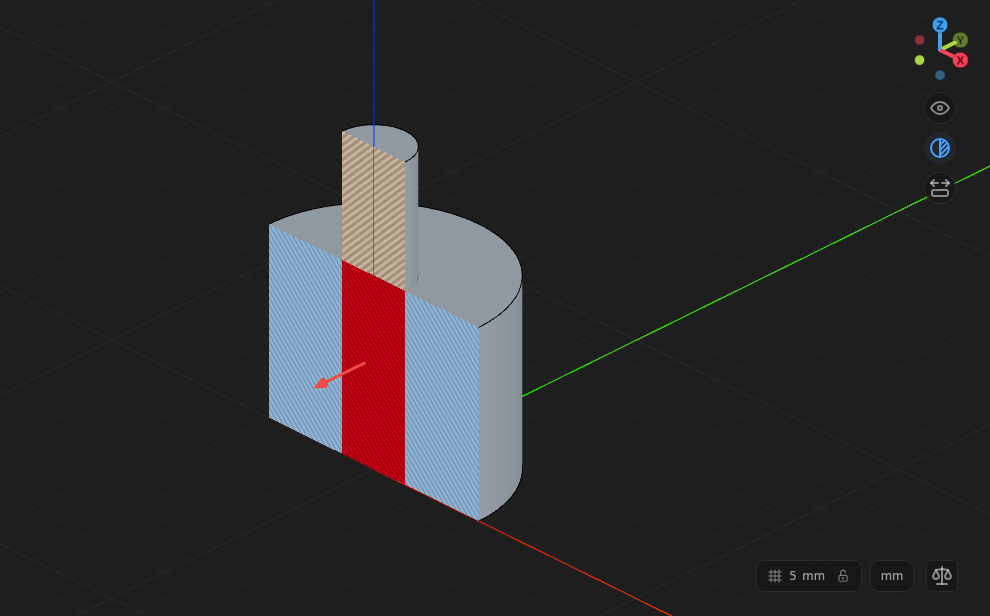
- 1Section viewsOpens the menu of the saved views. Lit while one is active.
- 2ArrowDrag it to slide the cut plane forward or back along its normal. Releasing writes the new offset into the statement; clicking it types an exact offset.
- 3InterferenceThe volume two bodies share, painted red on the cut. The pin here is wider than its bore.
Creating a view
- Click the section button above Fit to view, then New section view….
- Pick the cut plane in the viewport: an origin plane, a
plane()feature's quad, or any planar face. - Name the view (the dialog suggests
A-A,B-B, …), tick Flip side if the wrong half should go, and apply.
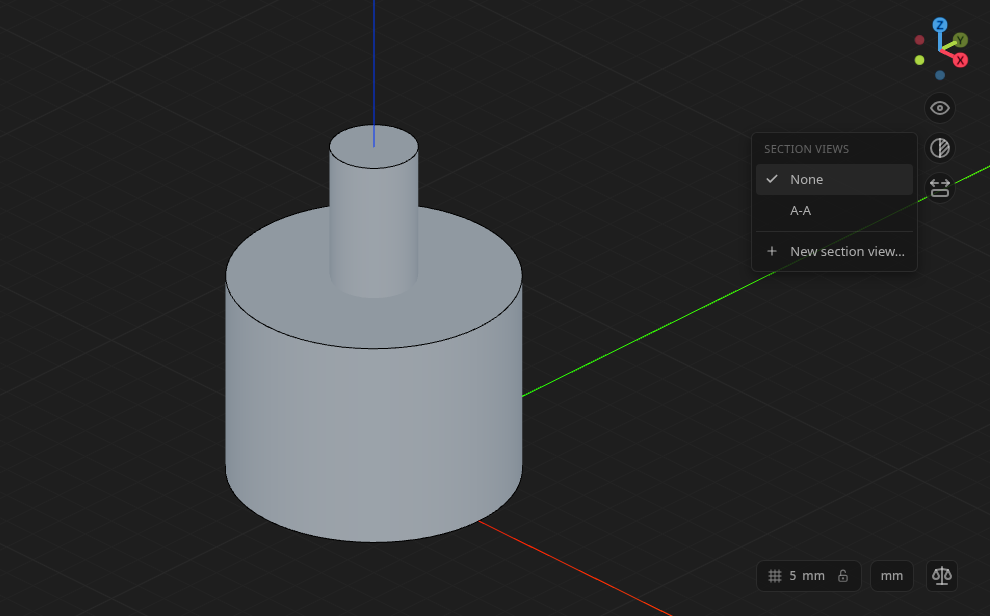
- 1NoneShows the model uncut.
- 2Saved viewsOne row per section() statement in the file, by name. A view whose plane failed to build is listed greyed out with the reason.
- 3New section view…Opens the dialog above. Read-only hosts have no create row.
The statement lands at the end of the file:
section('A-A', 'xz');
A picked face is lifted to its plane the way plane(face) reads it, and the face's producing feature is bound to a variable so the selector can name it:
const e = extrude(30);
section('Top', plane(e.endFaces(0)), { offset: -5 });
Moving the cut
Activating a view draws an arrow on the plane. Drag it to move the plane along its normal; the cut follows live, and on release the offset is written into the statement. Click the arrow instead to type an exact offset.
section('Bore', 'xy', { offset: 12 }); // the cut sits 12 above the XY plane
The plane normal points at the half that is removed, so section('Top', 'xy') removes everything above z = 0 and looks down into the model. flip: true keeps that half instead:
section('Bottom', 'xy', { flip: true });
What the cut shows
- Caps. Every body the plane passes through gets a cap in its own colour, hatched. Two bodies meeting at the cut hatch in opposite directions so they read apart.
- Interference. The volume any two bodies share is painted red on the cut. This is the same check the
interfereMCP tool runs; in an assembly it follows the live poses, so a part dragged into another shows red as soon as the drag settles. - Hidden shapes. A body hidden from the Shapes panel is not cut and not counted.
Section views stand down while a sketch is being edited, since the sketcher clips at its own plane, and come back when the sketch is finished.
In code
import { sketch, extrude, section } from 'fluidcad/core';
import { face } from 'fluidcad/filters';

sketch('xy', () => { /* … */ });
const e = extrude(40);

section('A-A', 'xz');                                  // cut at the XZ plane
section('Mid', 'xy', { offset: 20 });                  // 20 above XY
section('Top', plane(e.endFaces(0)), { flip: true });  // at the top face, keeping the top
The second argument accepts anything plane() accepts: an origin plane name, a plane() statement, or a face selection. section() returns the view; the statement builds nothing, consumes nothing, and takes no timeline row.